3D printing is key to an abundant world.
We use a lot of stuff. And until now, the most efficient way for the most people to have the most stuff has been to specialize — big, centralized factories custom-tooled to build a whole bunch of whatever (potato chips, cars, iPhones, toilet paper) and ship it around the world. Of course there’s localized capacity too, but only where the scale is enough to support the cost of a new big custom-tooled factory.
Viewed from a distance, it’s kind of crazy — so much physical stuff (input materials, sub-components, final goods) moving so many places! The overhead of extraction, custom fabrication, packaging and transport is staggering. But especially in an environment where we don’t factor in costs to the, you know, environment — it pencils out.
3D printing is qualitatively different: hyper-local “factories” that create all the stuff using the same simple input materials. Now of course that’s a bold statement; today’s 3D printing ecosystem can’t live up to that hype. But it will, and sooner than we think, for sure.
Models make the magic happen
Even in today’s limited form, 3D printers are remarkably capable. Sites like Thingiverse and Printables contain thousands of pre-built models for everything: toys, replacement parts, containers, tools, housewares, even weapons … it’s kind of overwhelming.
These models are the currency of the 3D printing world. It’s clear that CAD expertise — the ability to create 3D models for printing — is becoming just as valuable in the physical world as coding skills have been in the software world. Something that everybody should know a little bit about, even if it’s not part of your everyday.

Side note: AI is beginning to eat CAD the same way it’s eating code — for example, Claude built me this printable rubber-band gun with just a quick prompt and a couple of corrections. This is cool, but doesn’t change anything; it’s still worth learning the fundamentals. It’ll make you a better future manager of AI designers.
So come along as I learn to build a model using FreeCAD. This is my first attempt, and my “teacher” is mostly YouTube — so don’t expect the Venus de Milo. And this isn’t a tutorial, there are already a ton of those. It’s more an exploration of how to break down objects and their about their design.
A phone holder for the Rivian console
OK — our topic for today is my super-awesome Rivian R1S and its less-awesome center console. Most public ire is directed at the console’s black hole of a storage compartment, one of the least usable spaces I’ve ever seen. The 3D world has already gone to town on this, creating a ton of stacking units that cover up the embarrassment. Lara bought one within days of getting the car.
My issue is more subtle. The Rivian display is great, but I still like to have my phone visible “at a glance” while I drive. This is especially important given the NSA-level monitoring of my eyes during hands-free driving. A phone on the center console tray lies flat which sucks. There are a bunch of great dash mount options, but there’s no power up there — I hate threading cables all over the car.

What to do? Well it turns out there is this weird niche in the front of the console that seems primarily designed to capture pens and make them hard to retrieve. It struck me that one could build a piece that inserts into this niche and holds the phone at a reasonable angle.
This felt like the perfect thing to create as a vehicle to learn how to use FreeCAD — a complex shape with some interesting requirements, but no moving parts and possible to print in one piece. Challenge accepted!
Spoiler Alert
I’d love to save the reveal for the end, but you kind of need to see where we’re heading for anything else to make sense. So here is the final product — in the car, and as a rotatable model you can spin around. Pretty simple, the bulk of the piece nestles securely in the console niche and provides a base for the plate and hook the phone goes into. It actually works phenomenally — woo hoo!


Getting started with FreeCAD
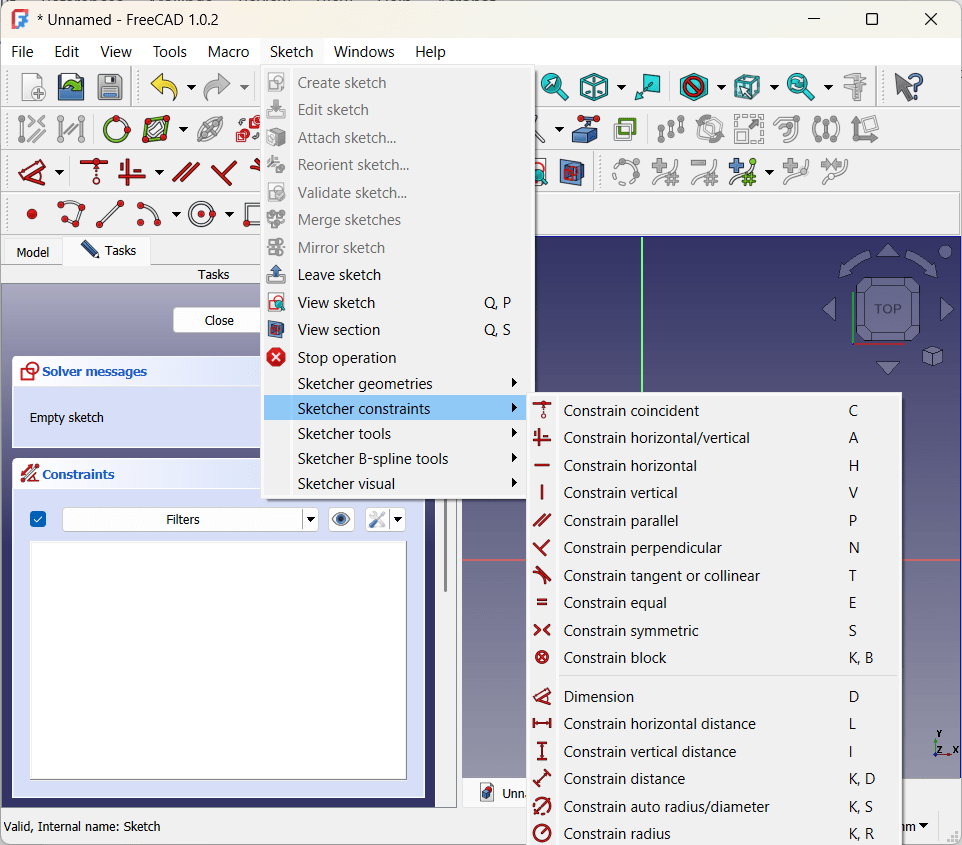
There are a bunch of really capable free CAD programs out there; I chose FreeCAD because it seems to be the most “professional” system — I was looking for something that would force me to learn the fundamentals.
It’s an amazing application — and bewildering on first run! My usual mode is to just wade in, but there was just no way. So I spent some time watching this phenomenal set of tutorials (note they do show an older version of the app) and bought an actual paper reference book (which made me feel very nostalgic for my Richter and O’Reilly days).
OK, start again. There are really just a few key concepts to understand; the rest is (a metric ton of) specialized tools and controls for manipulating the basics.
Bodies and Sketches
FreeCAD is a parametric design tool, which means it builds up objects based on geometric shapes and relationships / constraints between them. This is a bit less intuitive than direct design, which is more about manipulating objects with push, pull and rotate operations, kind of like sculpting a block of clay. I’m no expert; it seems to be one of those religious things. Anyhoo…
The first “big idea” is that objects are built up from 2D “sketches” — line drawings created on a plane in 3D space. These sketches serve as the basis of actual objects, with various other operations adding the third dimension.
Job 1: define the base piece that sits inside the niche. It’s a pretty weird shape: a flat side at the back, curved at the front, growing larger from bottom to top. FreeCAD lets you import an image to use as reference, so I started by taking a picture from the top with a ruler sitting next to it. The ruler lets us calibrate measurements by specifying something of known size (i.e., the ticks).

This gives us something to trace with sketching tools. The first sketch was for the bottom of the niche, so I created it on the XY plane (remember we are looking straight down from the top).
Next I needed a sketch for the top of the niche. This gets interesting — I’m still looking straight down so this second sketch is also on the XY plane. But it’s separated from the bottom by a height — that is, it needs to be at a different place on the Z axis. I did this by adding a second XY sketch but offsetting its position by 30mm. This is key and very powerful: the plane of a sketch is always flat, but can be moved and rotated anywhere in 3D space.
Here’s how the two sketches look together:

Constraints
“Constraints” enforce structural integrity by defining relationships between parts of a sketch. For example, a line might be constrained to a certain length or to always stay parallel to the X axis. Two points might be held symmetrical across an axis, or kept a certain distance apart from each other. The radius of an arc can be held constant, or lines can be made tangent to each other (nice for smooth transitions).
Typical best practice is to “fully constrain” sketches — defining enough relationships that the sketches stay exactly as they are on the plane. This isn’t a hard requirement, and there is a tinge of religion to conversations about it online, but I found it super-useful simply as a way to make sure I understand how the sketch fits together. In particular, symmetry constraints really helped ensure that the b-spline curves matched up on either side of the Y axis.
Adding volume: lofts, pads, rotations
Once you have sketches that define a planar view of your objects, you create volume by extending them into the third dimension. For the niche I used a “loft” operation to smoothly connect the bottom and the top:

Side note: at this point I got really excited and ran a test print to see how it fit into the niche. Unfortunately the answer was “not super-great” — tracing the image was a good start, especially for the curved sections, but I needed to tweak things a few times before getting it right. We got there eventually, but I’ll be using a more measurement-based approach for future projects.
There are lots of these operations. For a piece that is consistent in the third dimension (for example, a rectangular box), the “pad” operation simply adds thickness to a sketch:

Yet another option is “rotation” which spins a sketch around an axis:

This variety is the biggest reason that, at least for me, YouTube was a huge part of learning FreeCAD. It’s super-helpful to just watch people building things — which tools and constraints they choose and how it all fits together.
Adding the Mount Plate (Datum Planes)
Next up was the tilted plate for the phone to lay against. This is another place where things get interesting — the plate needed to lay at about a 40 degree angle for best viewing — but sketches sit parallel to the XY, XZ or YZ axes.
The tool for this is the “datum plane,” which essentially creates a new local XYZ coordinate system based off of objects in the original one. By creating a datum plane along the back vertical face of the niche insert and rotating it 50 degrees backwards, I ended up with exactly the right surface for a sketch.

You can see that the sketch is actually embedded inside the niche insert. Combining this with a “tapered” pad operation gave me more surface area connecting the plate to the insert for strength.
The Hook
Originally my plan was to extend a 17mm ball mount straight out from the plate, and attach a store-bought universal holder to that. But as I saw the piece come together, that seemed overly complicated — I could just create a little shelf and, by adding a couple hidden strips of grip tape, my phone would sit just fine.
One last sketch and pad did the trick — the only additional interesting thing here is that I used a “symmetric” pad to extend it evenly on either side of the sketch (shown in white). Not critical, just made it easier to ensure it was centered.

Finishing Touches (Fillets and Chamfers)
When you buy doodads like this, the edges are always smoothed out — both for aesthetic reasons and because sharp edges are pointy and uncomfortable. I do the same in woodworking too, I just never thought about it much. But apparently these operations are so fundamental to 3D design, they get their own dedicated tools!
I used a mix of chamfers (just cutting off the edge) and fillets (a rounded profile) for various parts of the piece. Done and dusted!
“Buildability”

Wait, one more thing. You may recall a million years ago when I first got my printer, I wrote about support for overhanging areas. The obvious way to print the phone holder is with the flat insert side on the printing plate to minimize overhang. This was fine, except my first attempt at the “hook” extended just a few millimeters past that edge.
Keeping it this way would have required a ton of stupid, wasteful support structure — so I went back and tweaked things a bit so the hook sat a bit higher on the plate. Easy peasy, but a great reminder that the end user is not the only source of requirements — “buildability” is important as well.
It’s actually been awhile since I’ve learned so much in such a concentrated way. I’m really glad I did it, and I’m already thinking about my next project. One that involves multiple moving parts and joints — hinges, snaps, axles, that kind of thing. Wish me luck!
Coda
This piece works great for me — I love the low profile and ease of dropping the phone onto the plate. But it was eating at me a bit that it wasn’t very universal — my beloved Razr is 9mm thick and I never use a case, so the hook is too narrow for many phones. I could make it bigger, but too big and the phone starts slopping around. So I went back and built the version with a ball mount too, and keep it in the car in case Lara wants to put her (sigh) iPhone or whatever in there.

If you’ve got a Rivian and would like to print or adapt a holder yourself, please feel free to download and use the files below however you’d like. No guarantees that I did anything the right way though … you’re on your own!